
SSH Tunneling
In certain cases your databases may not be directly accessible from the public internet for security reasons. In such cases, you can use SSH tunneling to securely connect to your database through an intermediary SSH server. For databases that support SSH tunneling, Infragate provides built-in support to configure and use SSH tunnels when connecting to your database.
flowchart LR
    subgraph Internet
        A["Infragate (Your MCP Server)"]
    end

    subgraph vpc[VPC]
    subgraph Public_Subnet[Public Subnet]
        B["Bastion Host (EC2 Instance)
        Host: 34.204.49.135
        Port: 22"]
    end

    subgraph Private_Subnet[Private Subnet]
        C["Postgres RDS Instance
        Host: database-1.cgbgkk0s89mn.us-east-1.rds.amazonaws.com
        Port: 5432"]
    end
    end
    A -- "SSH Tunnel (Private Key Auth)" --> B
    B -- "Direct DB Connection" --> C

    classDef publicSubnet fill:#d1fae5,stroke:#10b981,stroke-width:1px,rx:8px,ry:8px;   %% green
    classDef privateSubnet fill:#dbeafe,stroke:#3b82f6,stroke-width:1px,rx:8px,ry:8px; %% blue
    classDef node fill:#fff,stroke:#888,stroke-width:1px,rx:8px,ry:8px;

    class Private_Subnet privateSubnet;
    class Public_Subnet publicSubnet;
    class vpc,Internet node;
    class A,B,C node;
Setting Up SSH Tunneling
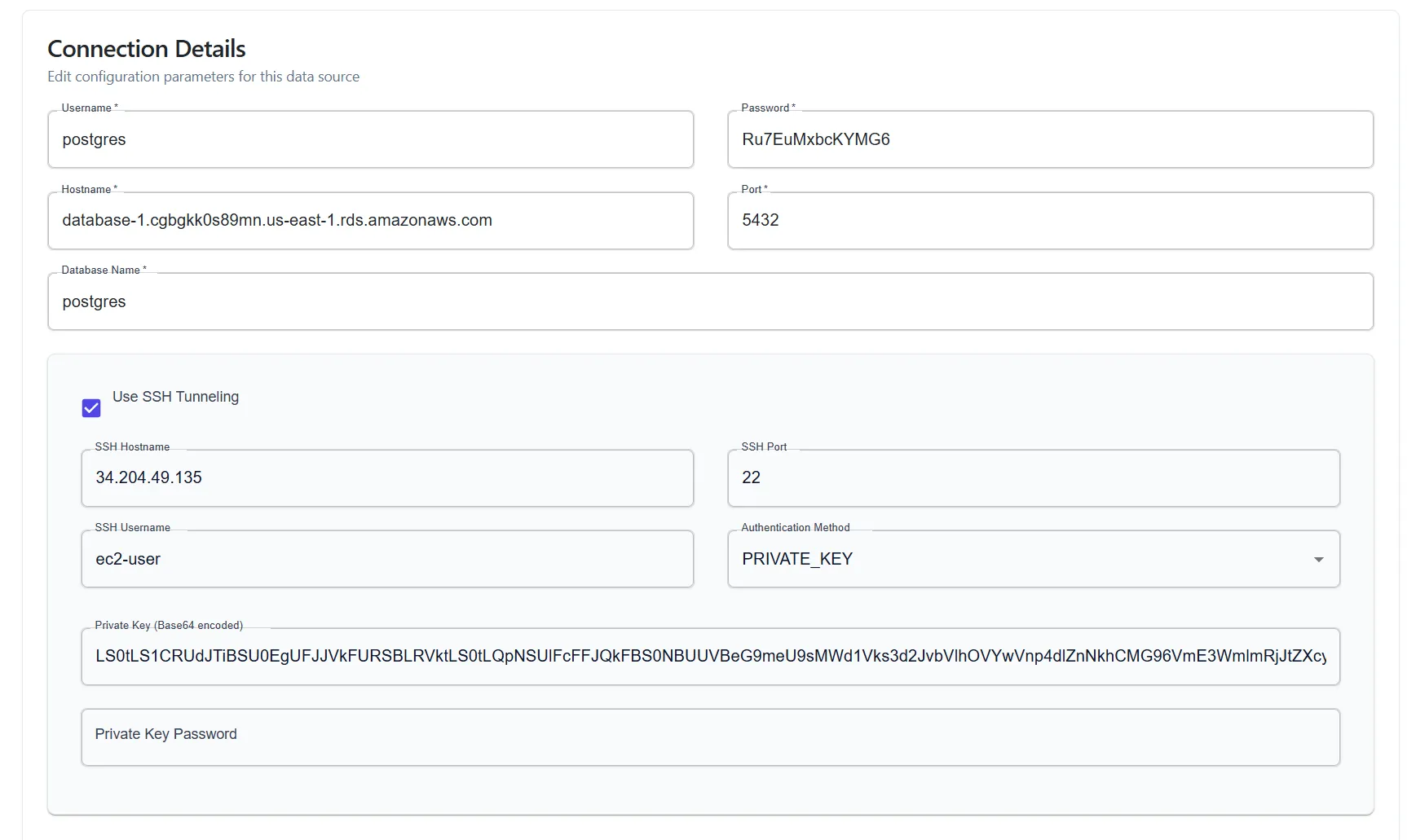
Section titled “Setting Up SSH Tunneling”SSH tunneling is configured when you define your data source. Consider the following scenario:
A Postgres RDS Instnace hosted in a VPC in a private subnet that is not exposed to the internet. However, there is a bastion host (an EC2 instance) in a public subnet that can access the RDS instance.
RDS Instance Settings Example:
- Host:
database-1.cgbgkk0s89mn.us-east-1.rds.amazonaws.com - Port:
5432 - Username:
postgres - Password:
Ru7EuMxbcKYMG6 - Database:
postgres
Bastion Host Settings Example:
-
Host:
34.204.49.135 -
Port:
22 -
Username:
ec2-user -
Private Key:
-----BEGIN RSA PRIVATE KEY-----MIIEpQIBAAKCAQEAxofyOl1guVK7wbomYa9V0VzxvVg6HB0ozVa7ZifF2mew2JTIpoTSz42yESKOOb/KLMd2juwp3K6E1QqbGNmQCEwJB15lXBXZJFzfRwlosb/nRspP...bmAiruvHYMcj03g+7PiX3sgSJcvoPrwqjIi6dqkFh5GCuZP0XBJ+VEs=-----END RSA PRIVATE KEY-----To configure SSH tunneling in Infragate, provide the following details in the database connection settings:
- Fill out the username, password and database name.
- For
HostnameandPort, use the RDS instance’s hostname and port as they appear inside the VPC. Note that it is assumed that the database is accessible from the bastion host. - Check the “Use SSH Tunneling” option.
- Provide the bastion host’s hostname, port, username, and private key (In Base64 format). If your Private Key requires a password it also needs to be provided.