

Quick Start
Deploy your first MCP server in 5 minutes
Section titled “Deploy your first MCP server in 5 minutes”In this quick start, you will learn how to deploy an MCP server on Infragate, add a database-backed tool that queries an external database for active rRNA records by taxonomy, and invoke it with MCP Inspector. You will provision the server, define a parameterized SQL query and data source, then test the tool end to end in minutes.
-
Sign up for Infragate
Section titled “Sign up for Infragate”Create your free account at console.infragate.co
Open Console -
Create a MCP Server
Section titled “Create a MCP Server”Navigate to the “MCP Servers” and click “Create Server”. Assign a name to your server, choose Authorization Mode as
None, and a deployment region of your choice. Finally click “Create Server”.It will take a minute for the server to be initalized.
-
Create a new tool
Section titled “Create a new tool”After the server has initialized successfully, click on “Tools” tab and then “Add Tool”. In this quick start, we will create a simple tool that returns active ribosomal RNA (rRNA) records from the RNAcentral.
-
Set the tool name and description:
Tool Name find_rRNA_by_taxonomyTool Description Retrieves up to 10 active ribosomal RNA (rRNA) records from the RNAcentral database whose associated organism’s taxonomy lineage matches a given search term. Returns each RNA’s ID, type, and description. -
Set tool parameters:
Under “Tool Parameters” click “Add Parameter” and add the following parameter:
- Name:
search_term, Type:string, Description:The term used for searching
- Name:
-
Choose Tool Type:
Select “Database”
-
Define a new data source:
In “Data Source” choose “Create New Data Source”
- Data Source Name:
RNA Central Database - Description:
RNAcentral is a comprehensive database of non-coding RNA sequences - Database Type:
PostgreSQL - Connection details, from RNAcentral documentation:
Username readerPassword NWDMCE5xdipIjRrpHostname hh-pgsql-public.ebi.ac.ukPort 5432Database Name pfmegrnargs - Leave SSH Tunneling disabled
- Data Source Name:
-
SQL Query:
Under “Query Type”, keep the default selection - Prepared Statement (Recommended).
Set the SQL query as follows:
SQL Query SELECT precomputed.id, precomputed.rna_type, precomputed.descriptionFROM rnc_rna_precomputed precomputedJOIN rnc_taxonomy tax ON tax.id = precomputed.taxidWHERE tax.lineage LIKE '%' || :search_term || '%'AND precomputed.is_active = true AND rna_type = 'rRNA' limit 10 -
Save the tool
Click “Save Tool” to add it to your MCP server and return to the MCP Server Overview page.
-
-
Invoke the tool
Section titled “Invoke the tool”Using your MCP client of choice, connect to your server and invoke the tool. In this quick start guide, we will use MCP Inspector.
Run the following commands in your terminal/command line:
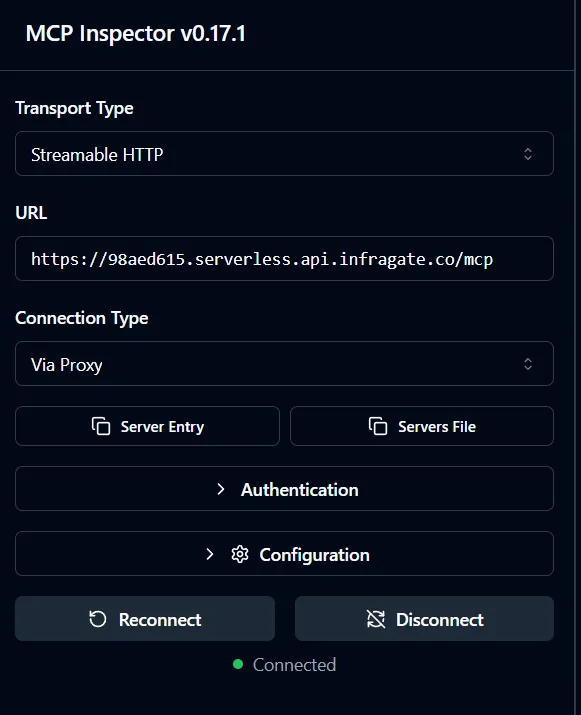
Terminal window npx @modelcontextprotocol/inspector- Configure connection details
- Set the Transport to
Streamable HTTP - Set the URL to your server’s endpoint, e.g.
https://<your-server>.serverless.api.infragate.co/mcp - Click Connect
- Set the Transport to
- List Tools
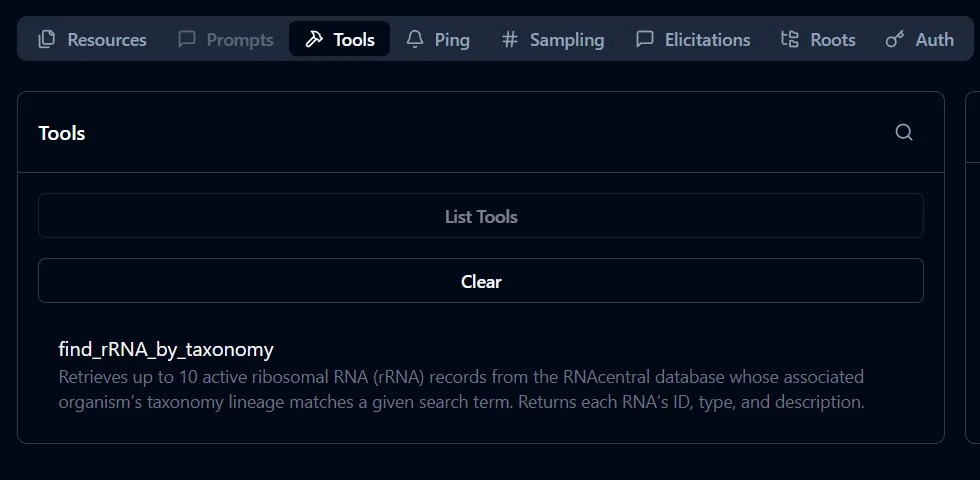
- Switch to the tools tab and click “List Tools”
- You should see the
find_rRNA_by_taxonomytool listed. Click on it to view its details.
- Call the tool
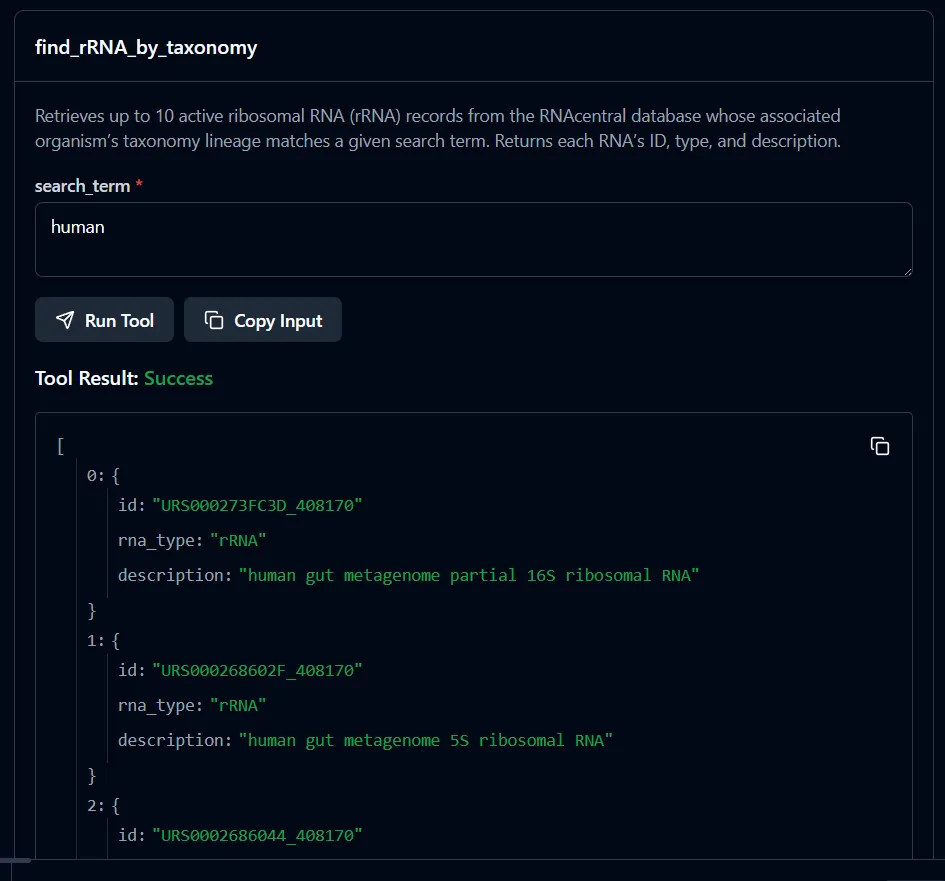
- Choose the tool
find_rRNA_by_taxonomy - Set the
search_termparameter tohuman - Click “Run Tool”
- Choose the tool
- Configure connection details