
Getting Started
Similar to database integrations, Infragate allows you to connect to HTTP APIs as data sources. This enables you to leverage external services and data within your AI applications by defining tools that interact with these APIs.
When setting up an API data source, you’ll need to provide the base URL of the API and configure any necessary authentication headers or parameters. You can then define tools that correspond to specific API endpoints, specifying the HTTP method, path, and any required query parameters or request body. The parameters defined in the tool will be mapped to the variables in the API request, allowing the AI model to interact with the API seamlessly.
In this guide, we’ll walk you through the steps to create an MCP server that integrates with an HTTP API data source that uses a BMI (Body Mass Index) Calculator API.
-
Create an MCP Server
Start by logging into the Infragate Console. Navigate to the “MCP Servers” section and click on “Create Server”. Provide a name for your server, select the desired authorization mode, and choose a deployment region. Click “Create Server” to initialize your MCP server. -
Add a HTTP Tool - BMI Calculator
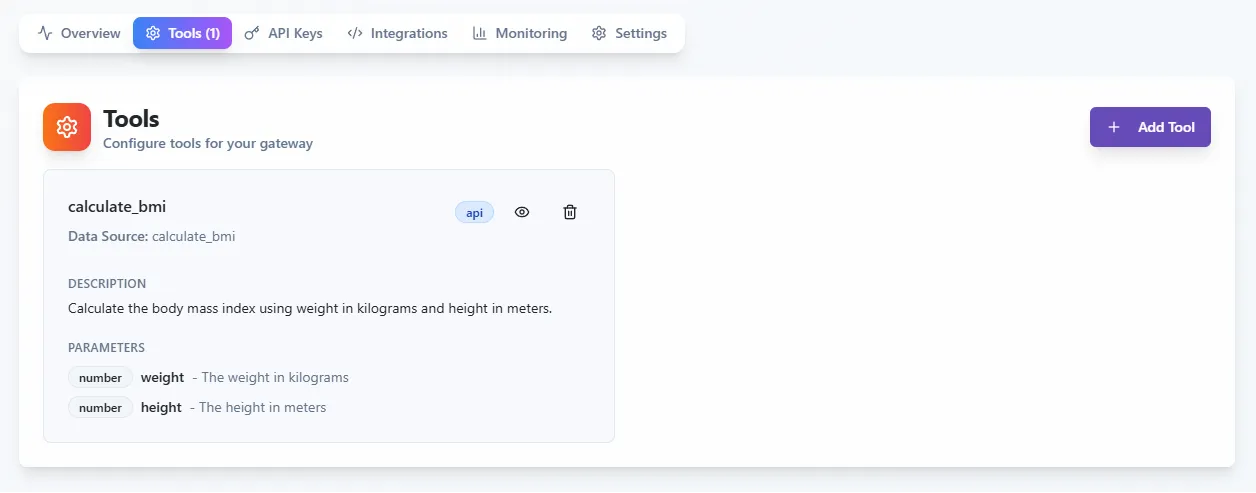
- Once your server is up and running, go to the “Tools” tab and click on “Add Tool”.
- Define the tool’s name as
calculate_bmi, with a matching description set toA BMI calculator. - For this example add two parameters called
weightandheightof typenumber. - In the “Tool Type” section, choose “HTTP API” and then select “Create New Data Source” under Data Source.
- Give your HTTP tool a name and set the Base URL to
Set Authentication Method tohttps://bmicalculatorapi.vercel.app
None. - In API Configuration, set the following:
- HTTP Method:
GET - Endpoint:
/api/bmi/:weight/:height - Query Parameters: Leave as
{}. - Headers: Leave as
{}. - Transform Output: Leave disabled.
- HTTP Method:
- Save the tool to add it to your MCP server.
-
Invoke the Function
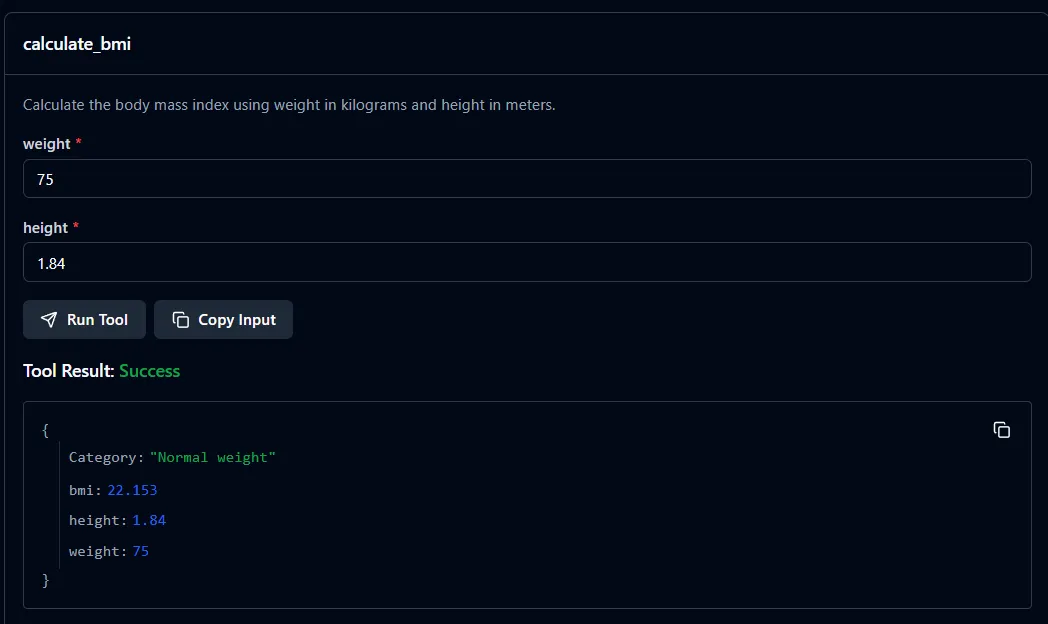
- Using MCP Inspector or a client of your choice, use the endpoint of your MCP server to invoke the newly created function tool.
- Pass a value for the
weightandheightparameters to see the function in action.