

Organizations
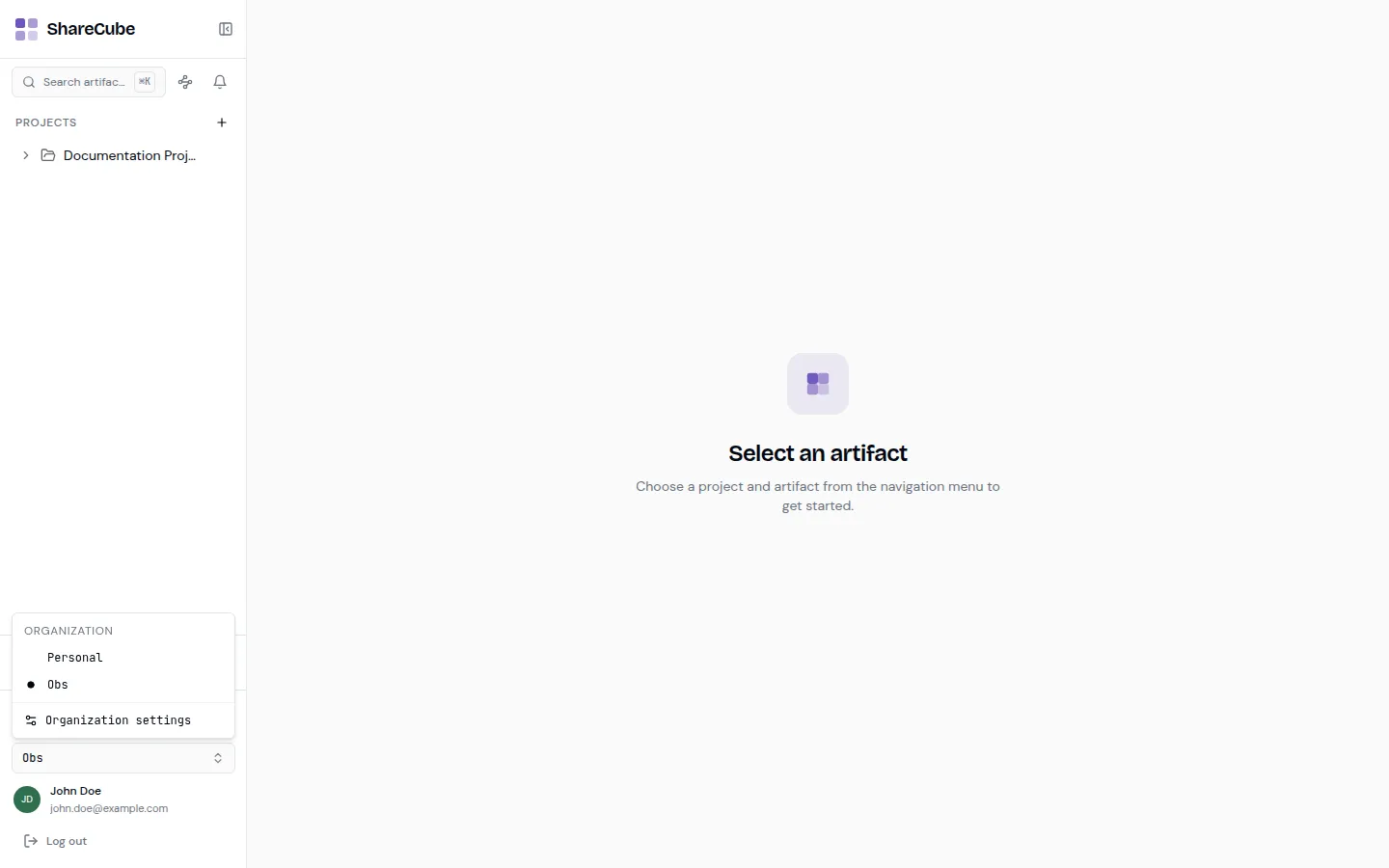
Everything in ShareCube is scoped to an organization: projects, artifacts, search, API keys, and the knowledge graph. The org you are in is the name at the bottom of the sidebar.
Switch organizations
Section titled “Switch organizations”Open the org dropdown. Pick another org, or Personal if you have a personal workspace. The sidebar reloads with that org’s projects. Recently viewed items from the previous org disappear, because those artifacts are not reachable anymore.
Organization settings in the same menu jumps to Settings with the members / org tabs in focus.
Members
Section titled “Members”Open Settings → Members.
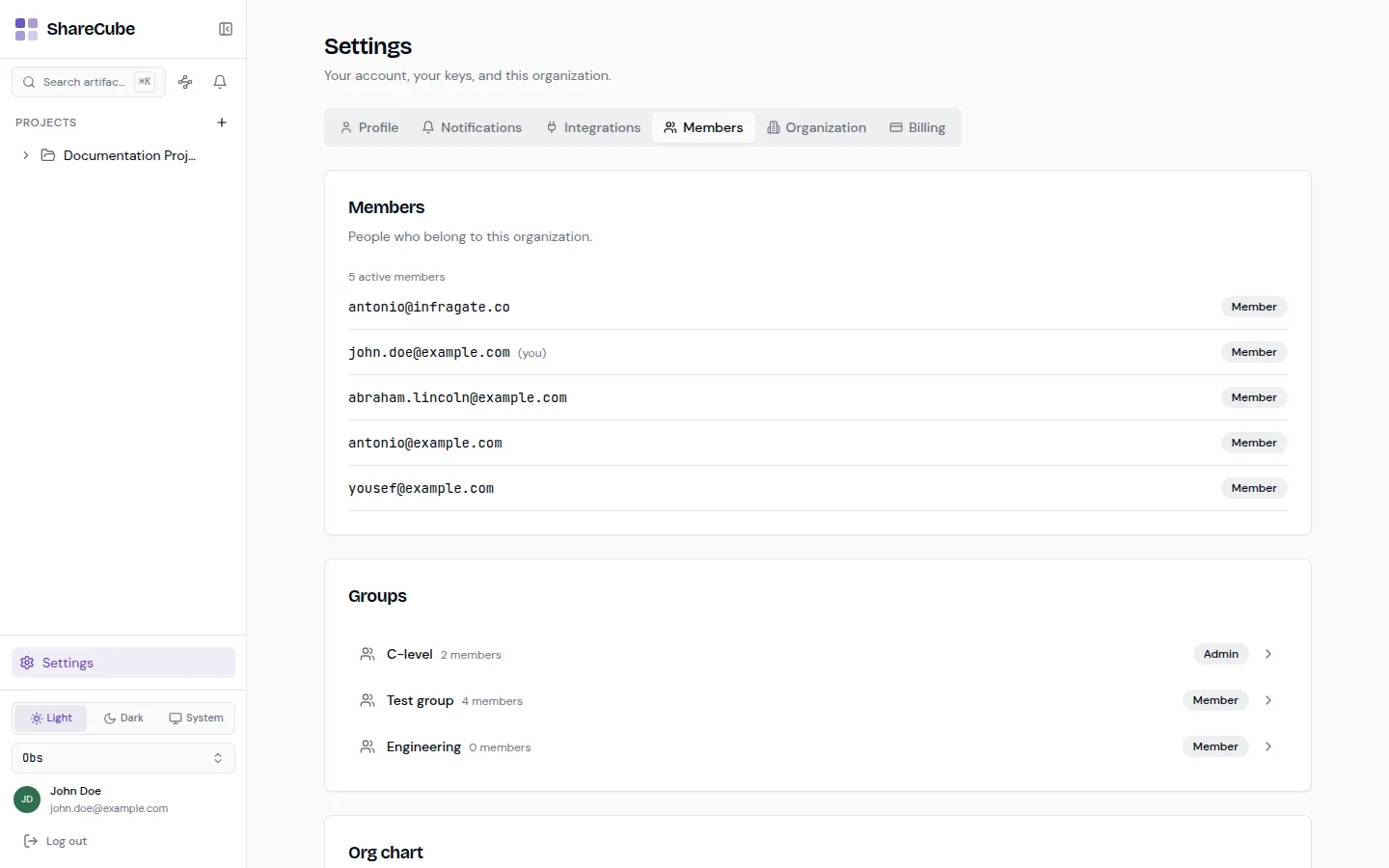
This list is everyone who belongs to the organization, with their org role (Owner, Admin, or Member). That is different from a project role. An org Admin can manage policy and keys. They are not automatically an Editor on every project.
People can sign in with Google, GitHub, or a username and password. Some organizations also use SSO. The members list is the same either way.
Depending on your plan and permissions you may also see:
- Invitations for people who have not joined yet.
- Groups you can assign to projects as a single principal.
- Org chart, a focused view (manager above, selected person in the center, direct reports below). Click a card to move around. It does not load the entire org at once.
Organization settings
Section titled “Organization settings”Settings → Organization is for Owners and Admins:
- Sharing policy: the maximum visibility allowed for new shares. See Sharing.
- Org profile details (name and related settings).
- SSO connection status, when your org uses SAML or a similar provider.
Billing
Section titled “Billing”Settings → Billing is the plan and usage page for the organization. What you see depends on your role. If the tab is empty, you are probably a Member rather than an Owner or Admin.
Organization API keys
Section titled “Organization API keys”Admins can open Manage organization keys from Integrations. That list is every key minted in the org, including ones created by other people. Revoke a key if someone left or a CI job should no longer have access.