

Comments
Comments belong on the sentence, not in a sidebar that forgot what you were talking about. ShareCube attaches each thread to the text you highlighted (quote plus character range). If a later edit removes that quote, the thread is marked orphaned so you can still find it.
You need at least Commenter on the project to write comments. Viewers can read them.
Leave an inline comment
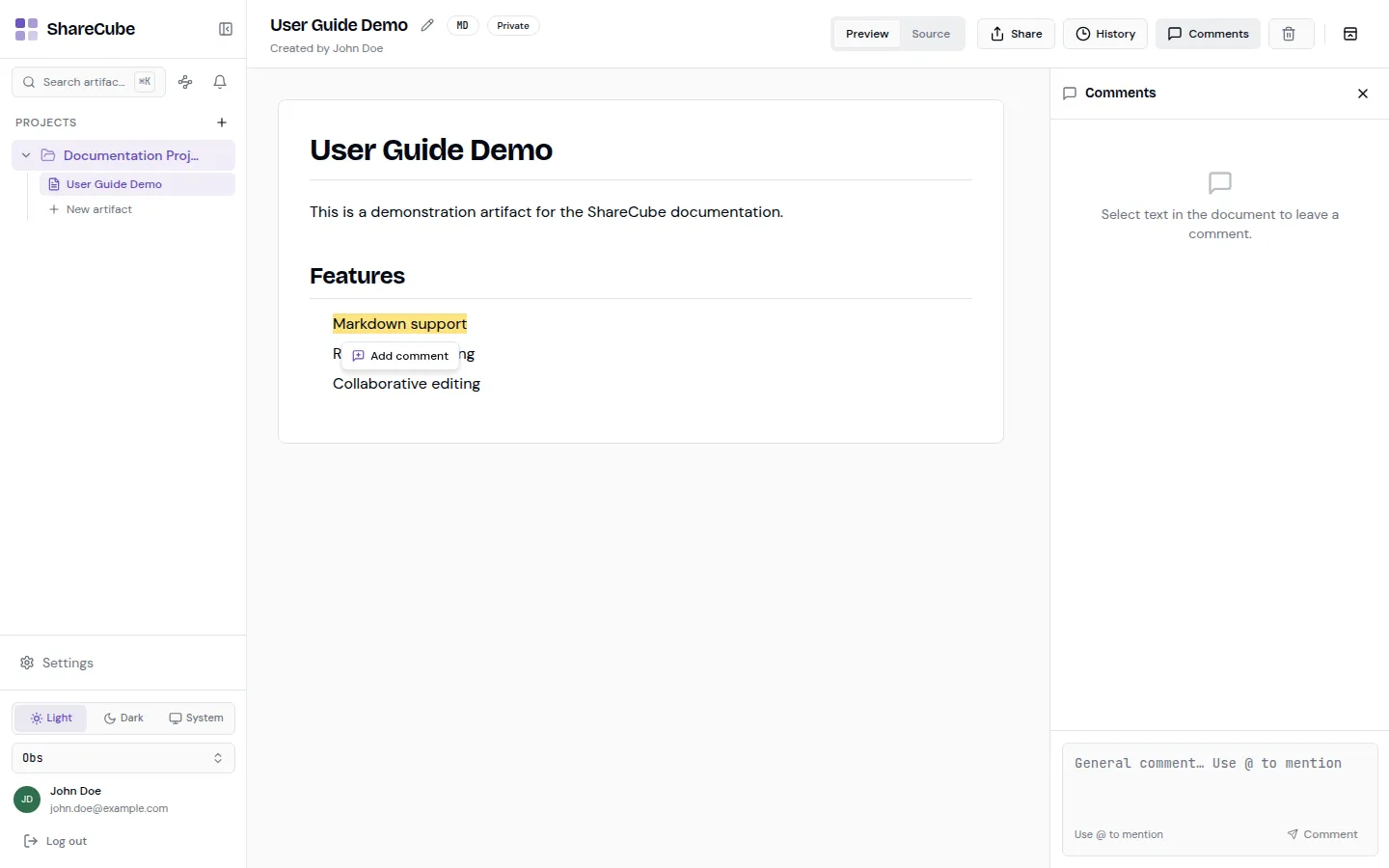
Section titled “Leave an inline comment”Switch the artifact to Preview, then open the Comments panel if it is not already open.
-
Select the text
Section titled “Select the text”Highlight the sentence or phrase. A small Add comment control appears next to the selection. The quote is highlighted in the document.
-
Write the note
Section titled “Write the note”Type your comment. Use
@to mention someone on the project. Mentions notify that person (and can email them if they opted in). -
Send it
Section titled “Send it”Submit the comment. The thread stays anchored to that quote. Replies stay in the same thread.
General comments
Section titled “General comments”The comments panel also has a General comment box at the bottom. Use that when the note is about the whole artifact, not a specific sentence. @ mentions work there too.
Resolve, edit, and delete
Section titled “Resolve, edit, and delete”- Resolve a thread when the feedback is handled. You can reopen it later.
- Edit your own comment if you mistyped.
- Delete your own comment, or a whole thread if you started it. Editors and Owners can moderate other people’s threads.
Agents can do the same work over MCP (list_comments, create_comment, resolve_comment, and so on). That is useful when an agent leaves review notes on a canvas it just published.
Presence
Section titled “Presence”When other people have the same artifact open, you will see their avatars in the header. That is a heads-up that someone else may be commenting or editing at the same time.