

Artifacts
An artifact is a rendered document. ShareCube supports two types:
- Markdown (
MD) for briefs, specs, and notes. Preview uses GitHub-flavored Markdown, including Mermaid diagrams. - HTML for designed canvases. HTML renders in a sandboxed iframe so untrusted scripts cannot run in your session.
Agents usually create artifacts over MCP. You can also create them in the app.
Create an artifact
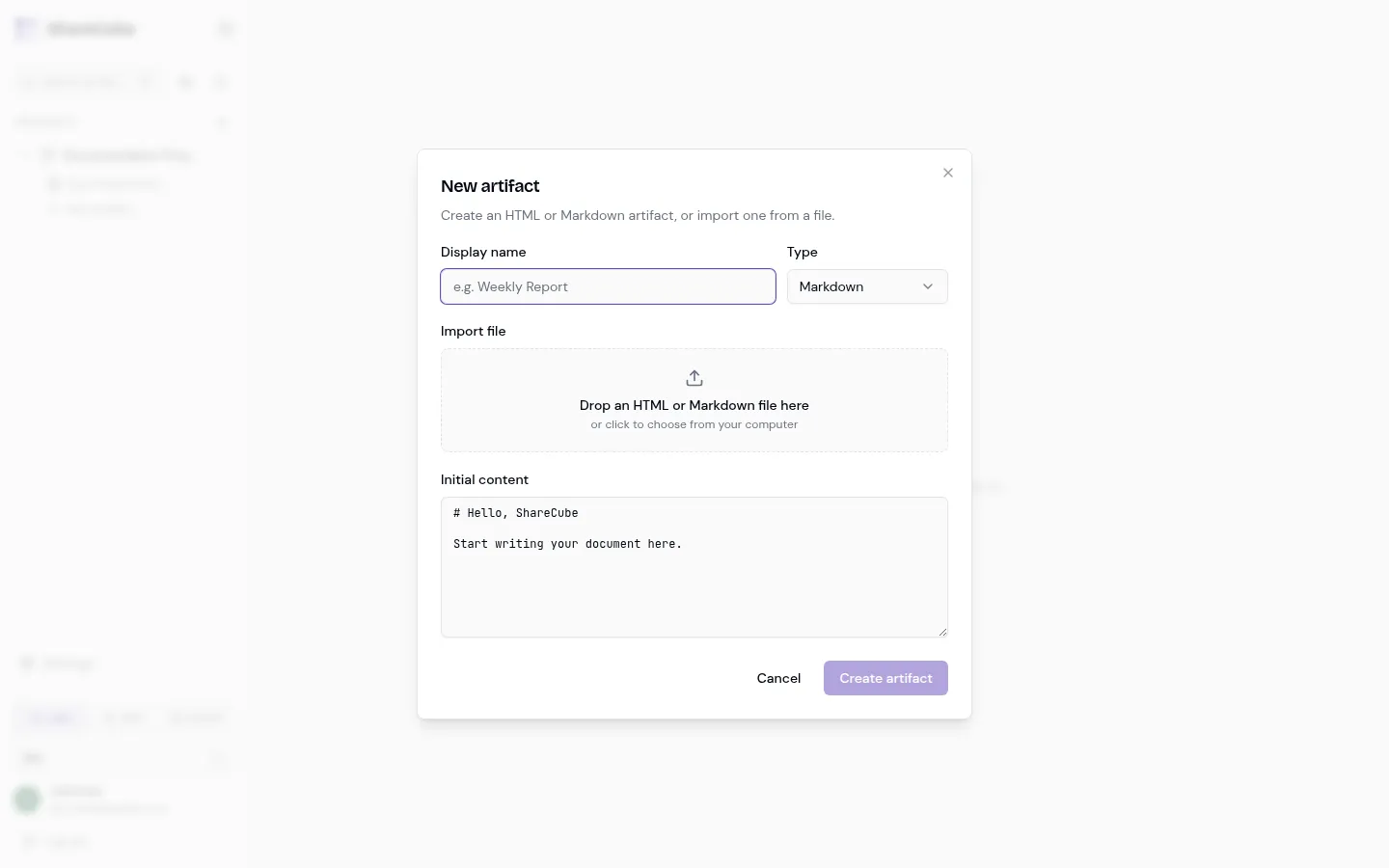
Section titled “Create an artifact”Open a project, then click + New artifact.
-
Set a display name and type
Section titled “Set a display name and type”The display name is what people see in the sidebar and in search. Pick Markdown or HTML.
-
Write content or import a file
Section titled “Write content or import a file”Paste into Initial content, or drop an
.md/.htmlfile on the import area. The editor starts with a short template if you leave it alone:# Hello, ShareCubeStart writing your document here. -
Create it
Section titled “Create it”Click Create artifact. You land on the preview. New artifacts start as Private.
You need Editor or Owner on the project to create artifacts.
Preview and source
Section titled “Preview and source”The artifact page has two views:
- Preview shows the rendered document. This is also where you leave inline comments.
- Source shows the raw Markdown or HTML with line numbers.
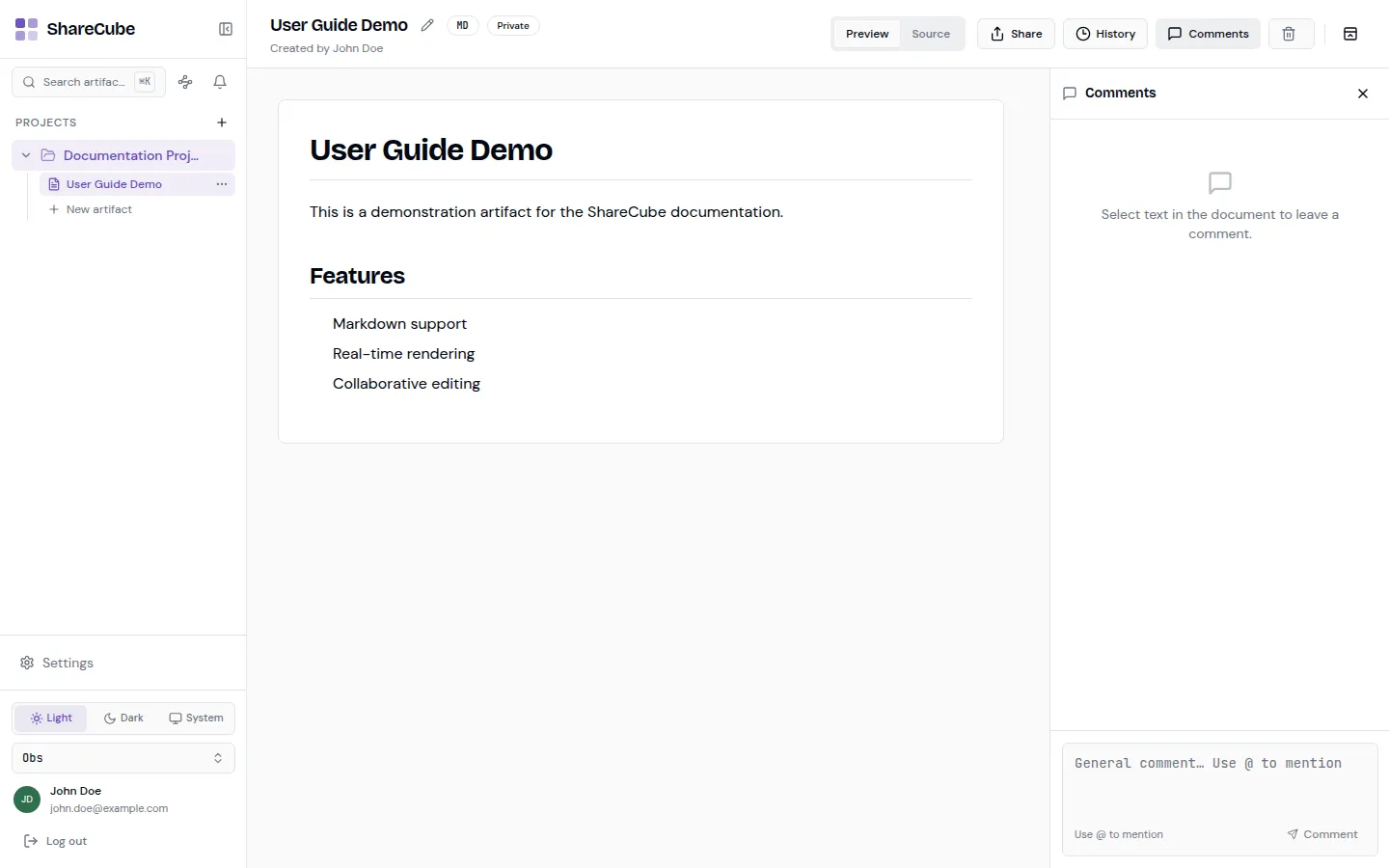
The header shows the title (click the pencil to rename), a type badge (MD or HTML), the current visibility, and who created it.
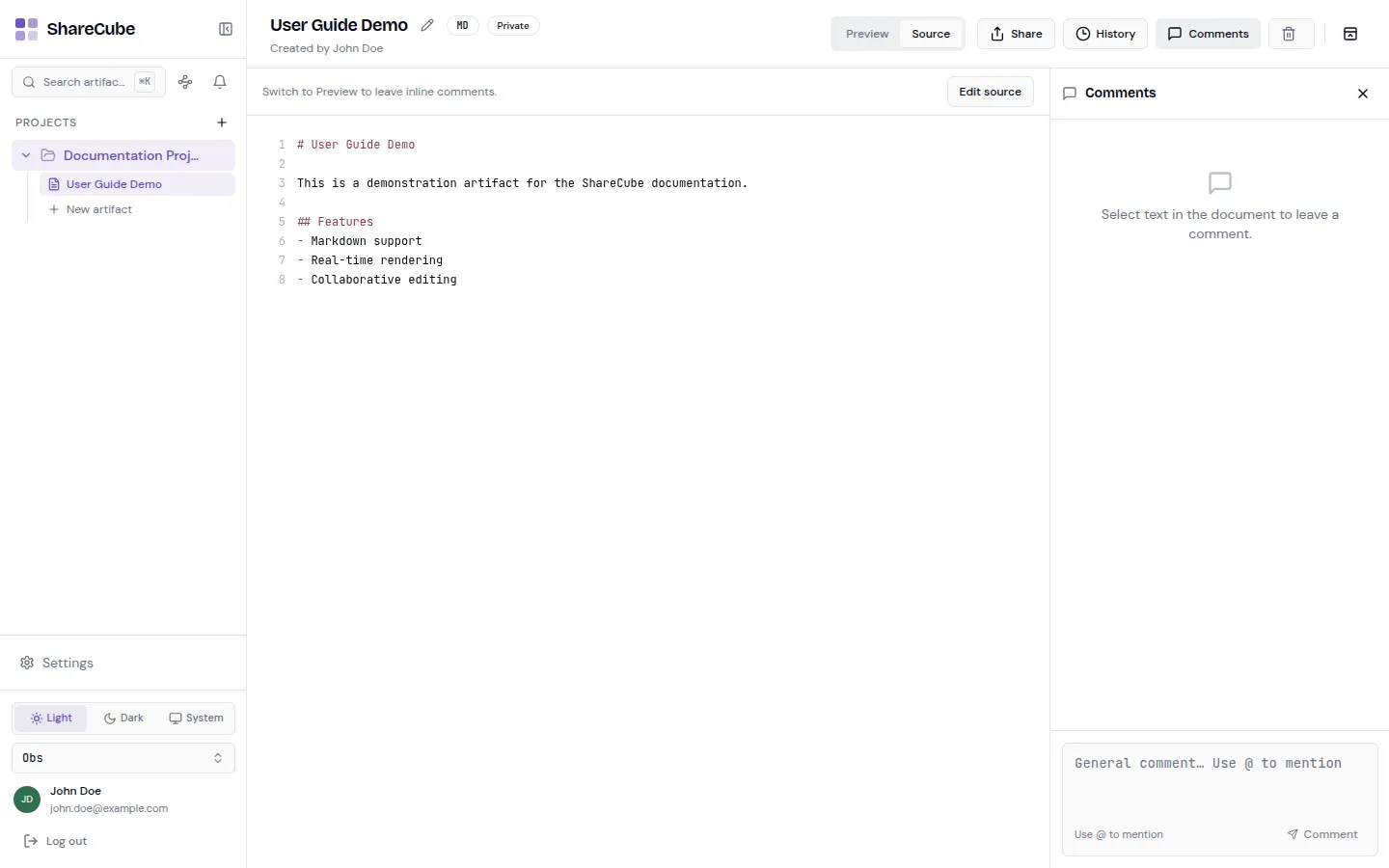
In Source, click Edit source. Change the document, optionally add a Message (this is the commit note shown in History), then Save.
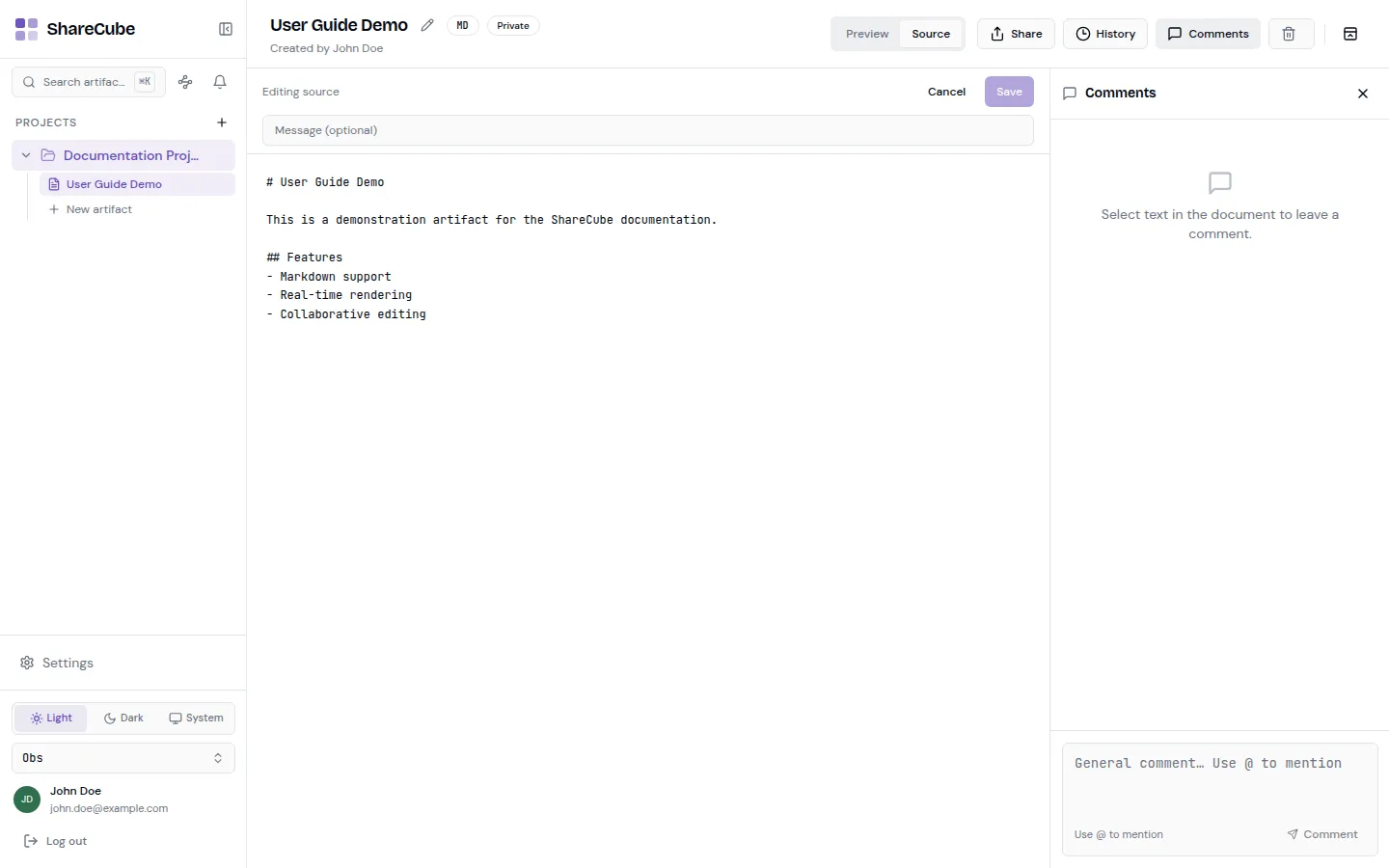
Each save that changes content creates a new version. Title-only changes do not.
Version history
Section titled “Version history”Click History. The panel lists versions with author, timestamp, and a Current badge on the live one.
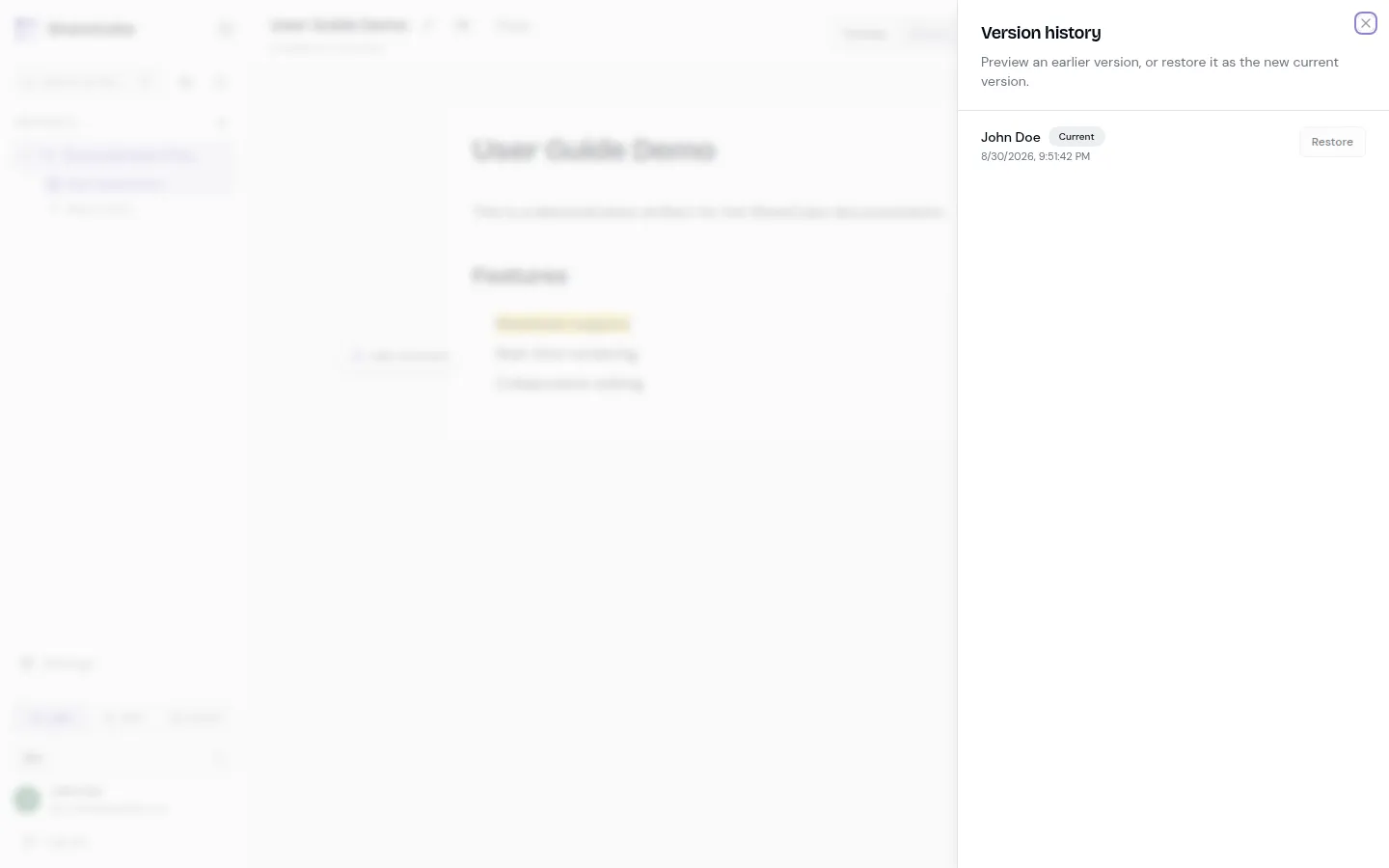
You can preview an older version, then Restore it. Restore writes a new current version. It does not delete the ones after it, so you can restore forward again if you change your mind.
Delete an artifact
Section titled “Delete an artifact”The trash icon on the artifact page permanently deletes that document, its comments, and its search entry. Editors and Owners can do this. There is no undo.
What agents return
Section titled “What agents return”When an agent creates or updates an artifact, MCP responses include:
console_urlfor the editor, comments, and sharing.share_urlfor the public share page (access still depends on visibility).
Ask your agent for the console URL when you want to keep editing in the browser.